
Public Link: Share Your AI Agent, No Website Needed

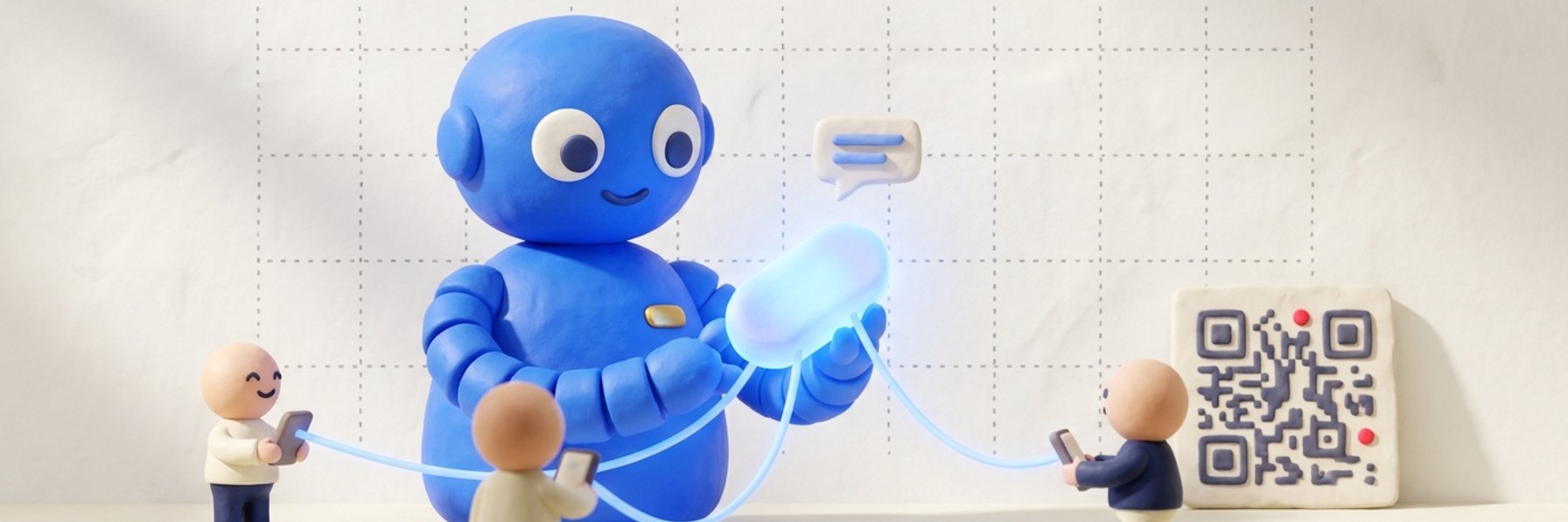
You built an AI agent. Now you want people to actually try it, without waiting on a developer to embed anything. Brilio's public link gives your agent its own web page at brilio.ai/a/your-slug, so anyone you send it to can start chatting in seconds. No website, no code, and no account for your visitors.
What is a Brilio public link?
A public link is a shareable URL for your agent in the form brilio.ai/a/your-slug. Open it and you land on a clean public chat page that talks straight to your agent. There is no login wall, no token to paste, and nothing for the visitor to install. Anyone who has the link can chat.
It is the fastest way to put a working agent in front of someone. You are not embedding anything on a site and you are not writing a single line of code. The link sits alongside your website widget and your Telegram bot, so it adds a channel rather than replacing the ones you already use. Best of all, it is available on every Brilio plan with no tier gate, because the whole point is to help your agent reach as many people as possible.
Why does a public link matter?
Embedding a widget is great once your site is ready, but that is not always the moment you want to share. Sometimes you have a brand new agent and no page to put it on yet. Sometimes you do not want to touch the live site until you have seen the agent perform. And sometimes the person you want to reach is nowhere near your website at all.
A public link solves all of that with one URL. Here is where it earns its place:
- Demo before, or instead of, embedding. Show a working agent in a meeting or a DM without any setup on the other side.
- Let clients and teammates try it. Send the link and let them poke at it in real conditions, then tell you what to fix.
- Collect feedback fast. A live agent gets far more useful reactions than a description ever will.
- Drop it where your audience already is. The link in your bio, a newsletter, a proposal, or a PDF all work.
- Print it as a QR code. Put your agent on a booth banner, a flyer, or a slide at an event and let people chat from their phones.
How do you turn on the public link?
You can go from off to shared in under a minute. Here is the whole flow:
- Open the agent you want to share inside Brilio.
- Go to Configure > Channels > Public link.
- Make sure the agent is set to public, not private. If it is still private, the page warns you and the link will not work until you switch it. This is the one step people miss, so check it first.
- Toggle Enable public link on.
- Copy your brilio.ai/a/your-slug URL. Use the open or preview button to see exactly what your visitors will see.
- Share the link anywhere you like. When you are done, the same toggle disables it instantly.
That is it. No deploy, no snippet, no support ticket.
Where should you share your public link?
Because it is just a URL, it goes anywhere a link goes. A few placements that tend to work well:
- Your email signature, so every reply doubles as a soft demo.
- The link in your social bio on LinkedIn, Instagram, or X.
- A newsletter or announcement, pointing readers to a live agent instead of a screenshot.
- A sales proposal or a client onboarding doc.
- A QR code on printed material or an event slide.
- A quick paste into Slack, WhatsApp, or a group chat when someone asks what you have been building.
How does a public link compare to a widget or Telegram?
The public link is not a replacement for your other channels. It covers the moments the others do not. Here is how the three compare at a glance:
| Public link | Website widget | Telegram | |
|---|---|---|---|
| Setup | Toggle on, copy URL | Paste embed snippet | Connect a bot |
| Needs a website | No | Yes | No |
| Visitor needs an account | No | No | Telegram account |
| Best for | Quick shares, demos, feedback | Always on support on your site | Reaching a chat app audience |
Most Brilio users end up running more than one at a time. The widget lives on your site, Telegram reaches people in their messaging app, and the public link is the thing you paste into a chat or a bio when you just want someone to try the agent right now.
Frequently asked questions
Is the public link available on the free plan?
Yes. It is on every Brilio plan with no tier gate, so you can share an agent from your first day.
Do visitors need an account to use it?
No. There is no signup and no login. Anyone with the link opens the page and starts chatting.
Why is my public link not working?
Your agent is almost certainly still set to private. Switch it to public in the agent settings and the link goes live.
Can I turn the public link off again?
Yes. The same Enable public link toggle disables it instantly, and you can turn it back on whenever you want.
Does the public link replace my website widget?
No. It works alongside your widget and your Telegram bot, so you gain a channel rather than swapping one out.
Can I put the public link in a QR code?
Yes. Paste the URL into any QR generator and people can chat with your agent straight from their phone camera.
Ready to share yours?
Spin up an agent, flip on the public link, and share the URL in the next message you send. It is free to start, there is no card required, and your first working demo is one toggle away. Build your agent with Brilio and put it in front of people today.
Jumpstart your AI Agent in minutes
Let your AI Agent answer your customers instantly, 24/7
Start for freeNo credit card required
Keep reading


